SuperEx Guide: SuperEx Web3 Wallet User Guide(V)
#SuperEx #Guide #Web3Wallet
Before we knew it, we've already reached Part 5 of our SuperEx Web3 Wallet Guide. As one of the most fundamental topics in the crypto ecosystem, Web3 wallets are absolutely worth taking the time to understand - especially the SuperEx Web3 Wallet.
And here's a little preview for everyone: the SuperEx Web3 Wallet Guide series is still ongoing. Part 5 is not the finish line.
SuperEx Web3 Wallet is a non-custodial, decentralized, multi-chain wallet that provides global users with one-stop asset management, secure storage, sending, and receiving functions. It generates an on-chain identity using a mnemonic phrase, enabling users to manage assets across multiple networks (such as Bitcoin and Ethereum) securely and conveniently on different platforms (iOS, Android). Additionally, it supports importing multiple mnemonic phrases and deriving addresses.
Currently, SuperEx Web3 Wallet supports over 70 chains, including Bitcoin, Ethereum, OKC, Solana, BSC, Polygon, Avalanche, Tron, and Arbitrum. When connecting the wallet, the system automatically identifies the network without requiring manual switching. The wallet integrates a cross-chain swapping aggregator (DEX), a one-stop on-chain investment tool (DeFi/Web3 Earn), a heterogeneous multi-chain aggregation trading platform (supporting Crypto, Ordinals, and NFTs), and a DApp discovery feature. With SuperEx Web3 Wallet, users can easily access over 1,000+ DApp protocols, making it a true one-stop gateway to Web3.
Step1. Download the SuperEx App and Create a Wallet
First, you need to have a SuperEx Web3 Wallet. For more details, refer to: How to Manage Your Wallet?
Step2. How to Receive Assets in Your Wallet
For more details, refer to: How to Quickly Receive Digital Assets from a SuperEx Exchange Account to a Web3 Wallet? (App Version)
Step3. How to Send Assets from Your Wallet
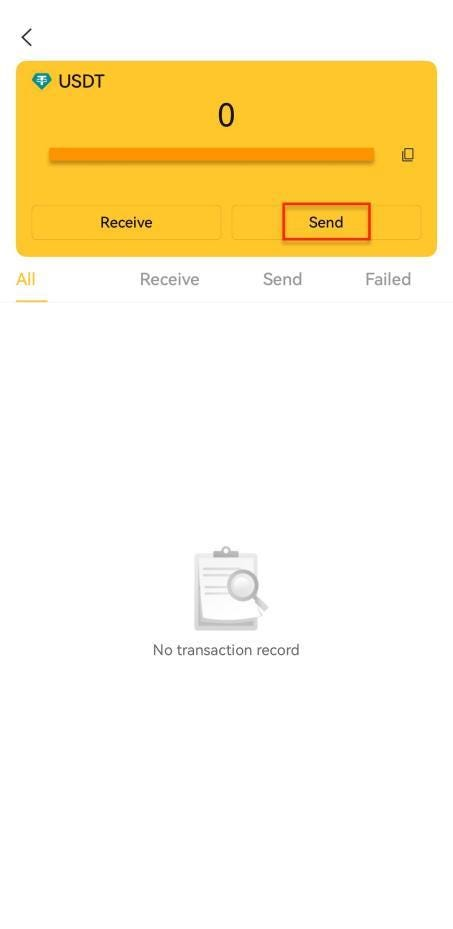
Select the wallet and account from which you want to send assets.
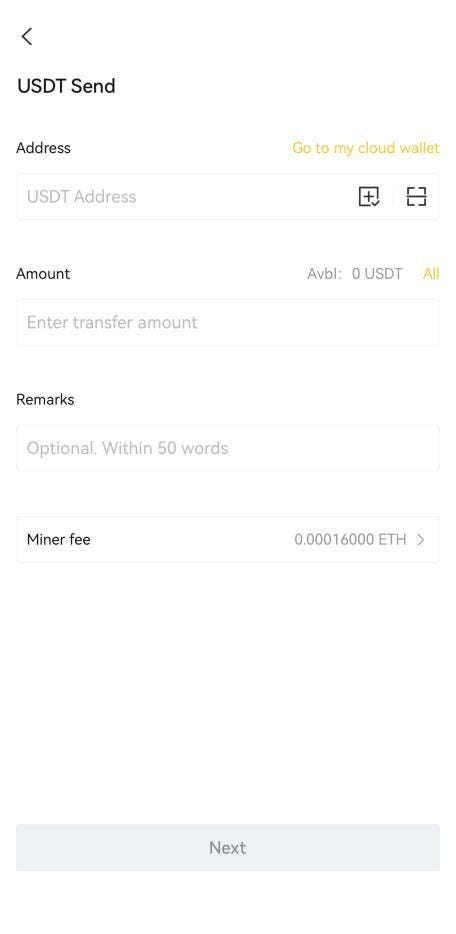
Click Send, choose the cryptocurrency, enter the Recipient Address and Amount, then click Next and confirm the transaction.
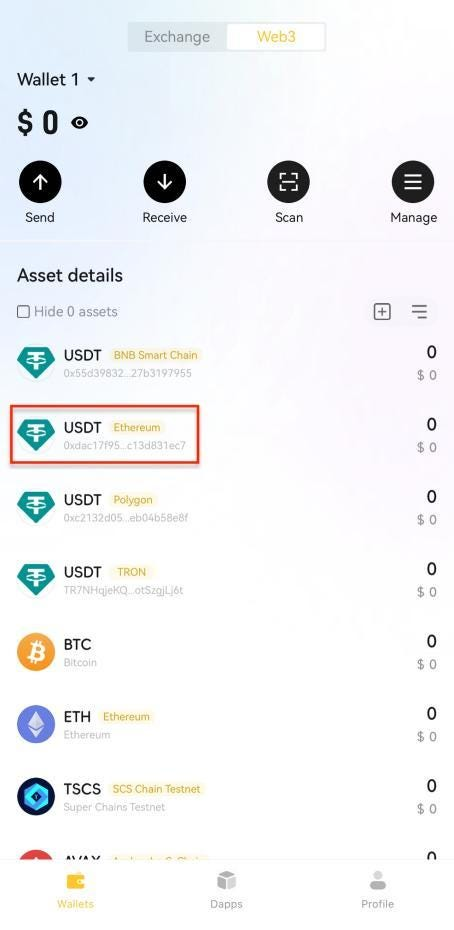
Step4. How to Search, Add, and Remove Cryptocurrencies?
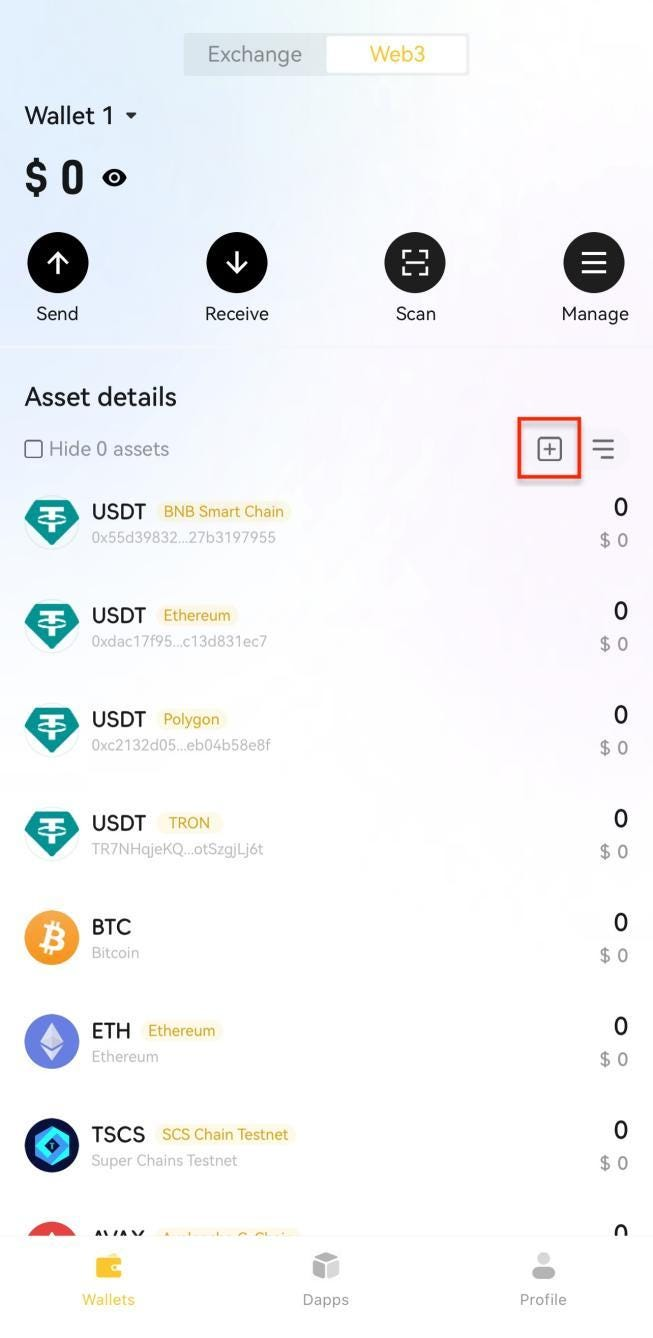
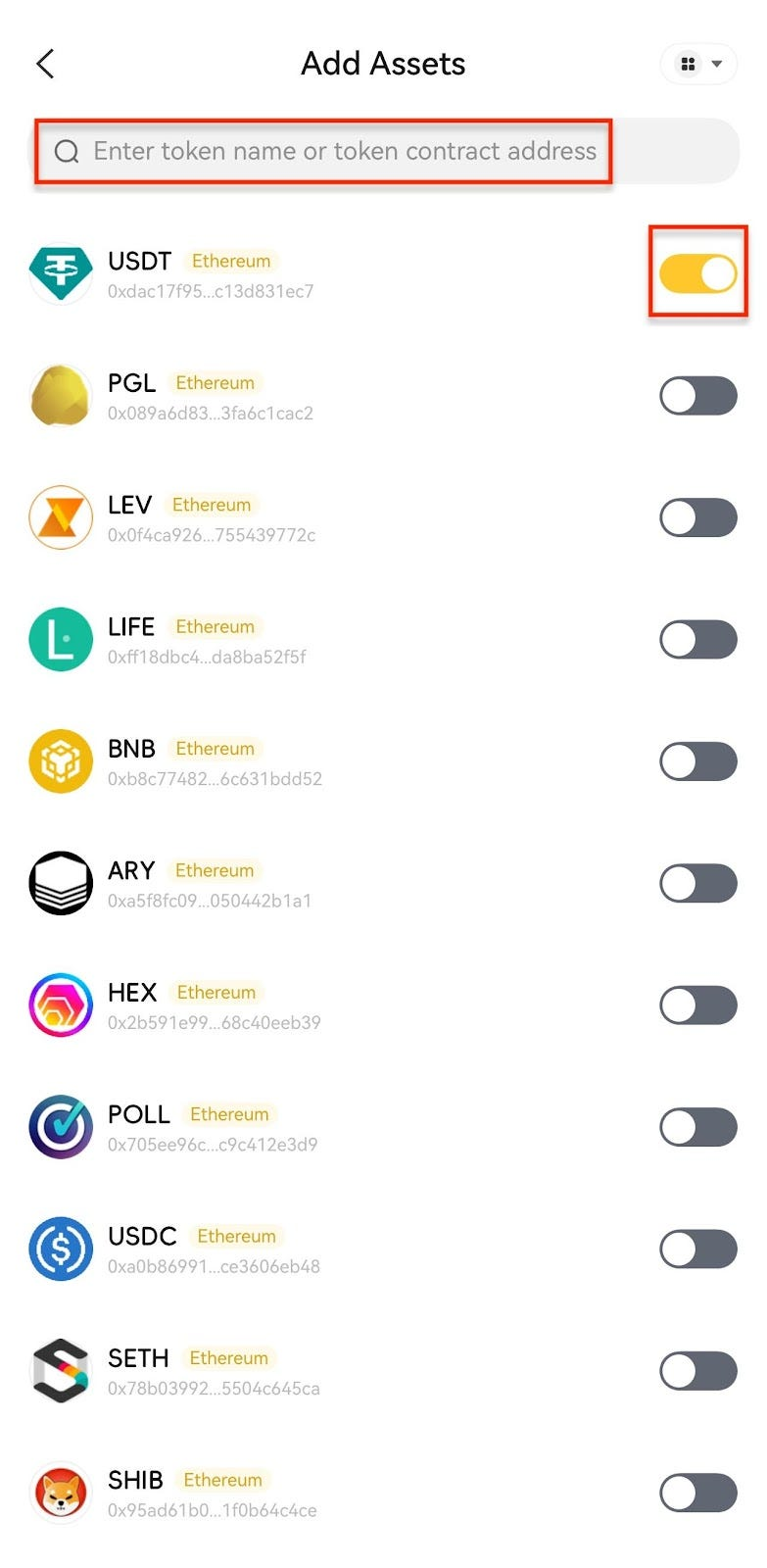
Click Manage Tokens and enter the cryptocurrency name or contract address in the search bar, and enable or disable it.